Guide eSIM: Deep Dive: How iOS Enables Overseas Wi-Fi Calling (WLoc, UDP 500/4500 & Transparent Gateway)
Technical analysis of how iPhone registers Wi-Fi Calling via IMS/ePDG: WLoc network positioning, UDP 500/4500 IPsec NAT-T pass-through, and OpenClash / Mac Clash Verge transparent gateway setup.
⚡ Quick Answer (TL;DR Summary)
Technical analysis of how iPhone registers Wi-Fi Calling via IMS/ePDG: WLoc network positioning, UDP 500/4500 IPsec NAT-T pass-through, and OpenClash / Mac Clash Verge transparent gateway setup.
Guide étape par étape et configuration
- Scan the eSIM QR code on a stable Wi-Fi connection, or manually enter the SM-DP+ Address and Activation Code.
- Label your primary SIM and travel eSIM clearly to prevent accidental roaming data charges.
- Upon arrival at your destination, turn on Data Roaming on the travel eSIM and verify APN settings.
- If encountering no service or 3G only, toggle Airplane Mode or manually select an authorized roaming carrier network.
Conseils clés et optimisation
- Never delete the eSIM profile during travel; once deleted, the QR code cannot be scanned again.
- Disable "Allow Cellular Data Switching" to guarantee your primary carrier cannot incur roaming charges.
3. Step-by-Step Setup Tutorial
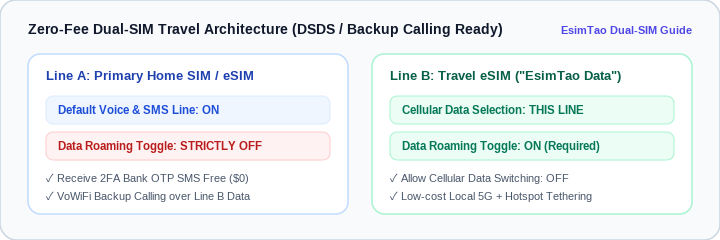
- Step 1: Go to Settings > Cellular > Primary SIM > Enable "Wi-Fi Calling on This iPhone".
- Step 2: Under Settings > Cellular > Cellular Data, select your Travel eSIM and toggle OFF "Allow Cellular Data Switching".
- Step 3: On your Primary SIM line, toggle OFF "Data Roaming" to prevent accidental carrier data charges.
- Step 4: If your primary SIM connects to an expensive local roaming partner, manually select an incompatible network in Network Selection to force the "No Service" trigger.
4. Critical Cost-Protection Advice
- To guarantee zero accidental billing, call your domestic carrier before flying to disable international roaming data while keeping Wi-Fi Calling active.
Frequently Asked Questions (FAQ)
Q: Can the same eSIM QR code be scanned and installed on multiple devices?
A: No. Most travel eSIM profiles are single-use credentials. Once bound or deleted, they cannot be re-downloaded to another device.
Q: How to use travel eSIM on devices without native eSIM support?
A: You can use removable smart physical SIM adapters (such as ESTK, 5ber, or X-eSIM) to write and manage global eSIM profiles via their companion app.
Q: Do Android devices support this feature?
A: Yes, flagship devices including Google Pixel and Samsung Galaxy S23/S24 offer "Backup Calling" under SIM manager settings.
Q: Why doesn’t the "Using Cellular Data" status appear?
A: Verify: 1. Wi-Fi Calling is enabled on the primary line; 2. Primary line is not actively connected to a roaming tower; 3. Travel eSIM data is active.